


Your System Support Specialist
From Computers to Printers & Networking
Support When It Counts !
Customer Refund on an Account Overpayment
To Create a new Supplier (Vendor) Name and Address Record you can hit the “F2” key or click on the “Add Rec” button.
A message will pop up asking you if you wish to Add a New Record and you must answer by clicking “Yes” or “No”. The cursor will then move to the box beside “01) Code” and you will enter an identifier code for this Supplier (Vendor). It is recommended that you use the first 4 characters of the Supplier’s (Vendor’s) name and add the digits “01” immediately behind that abbreviation. If you get a duplicate of the first 4 characters then add 1 to the two digit value on the back of the abbreviation.
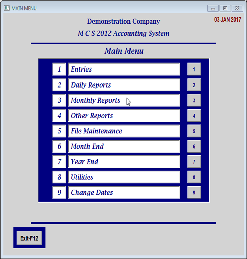
Go to “File Maintenance” (1) on the Main Menu.
Select “Supplier” (2) from the “Entries” Menu.
MCS Office Solutions



In Accounts Recievable Module.
Go to the Entries Menu and select “Customer Payments”
Select Account Balance from the Accounts Receivable Menu.
Enter the Customer Code and find the overpayment transaction that was made.
Once this transaction is found you must write down the invoice number and the cheque number that were recorded on this transaction.
Then click on the button F11-
Hit the enter key to accept the Customer Code which is highlighted in the Customer Code field.
Hit the enter key through the invoice number field and the remaining fields until you come to the amount field.
Here you will enter the amount you wish to refund as a credit.
For example ( -
Then enter the cheque number you wrote down at the beginning of the procedure.
The cursor will then advance to the body of the form and highlight the amount of the first transaction displayed.
If this is not the correct transaction then search through the list until you find the correct one.
Click on the amount field of the correct transaction and then hit the enter key. The cursor will then advance to the next field and should display as a credit value.
If this is the case then hit the enter key until you have advanced the cursor through all the fields on that line and a confirmation box will appear to accept and post the transaction which will complete the procedure.
In Accounts Payable Module.
( I am going to write this in short form and will expand it later)
Enter A/P and enter the appropriate Vendor Code.
Select F1-
ie 20171219.
Enter information anount etc. Leave the cheque number blank. So
It will print a cheque for this entry.
On the invoice portion enter the expense gl as the bank account ie 1020.
Then when the payment is made the GL Entries will all be correct for this refund.